
Top AI Tools for Beginners to Boost Productivity
Practical, beginner-friendly guide to the best AI tools for productivity. Learn which free and paid apps to try, how to use them safely, and simple workflows to save time.


Top AI Tools for Beginners to Boost Productivity
Artificial intelligence tools can feel overwhelming at first, but many are designed specifically for beginners. This article walks you through practical categories of AI tools, explains what each one does, and outlines simple, safe workflows you can try today. The guidance is practical and non-technical — aimed at students, professionals, small-business owners, and anyone who wants to save time without learning complex technology.
Who should read this
This guide is for beginners with little or no technical background who want to use AI responsibly to speed up everyday tasks: writing, research, image creation, note-taking, and simple automation.
Why use AI tools for productivity?
AI tools are best used to augment routine work: they help generate drafts, summarize long texts, suggest ideas, and remove repetitive steps from workflows. When used thoughtfully, they free time for creative and high-value work rather than replacing human judgement.
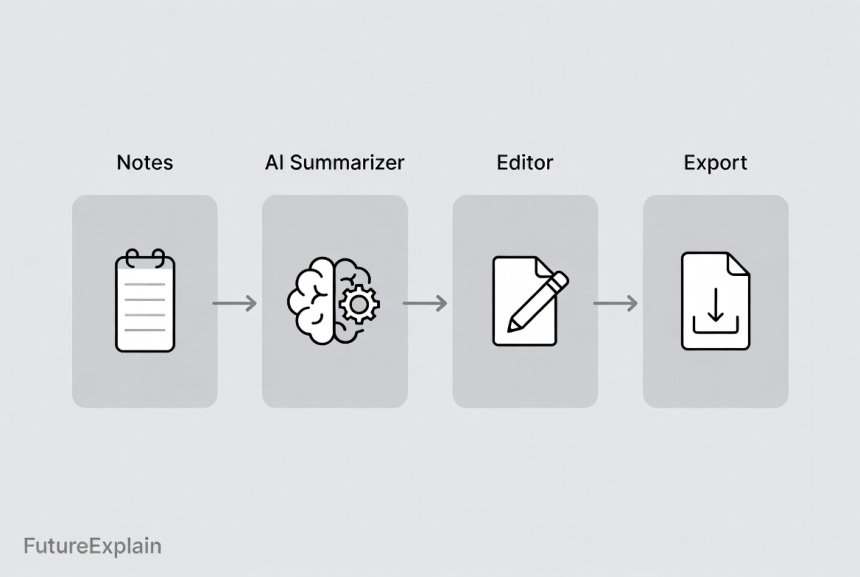
Categories of beginner-friendly AI tools
1. Writing and editing assistants
These tools help draft emails, improve clarity, fix grammar, and produce short articles or summaries. Good beginner choices offer a simple text editor, clear suggestions you can accept or reject, and export options (copy, download, or share).
- Typical uses: email drafts, meeting notes, short blog outlines, rewriting for tone or clarity.
- Beginner tip: Always review and edit AI-generated text — the tool should speed the first draft, not replace your final check.
2. Summarizers and research helpers
Summarizers convert long articles, reports, or transcripts into concise bullets or short summaries. Research helpers can extract key facts, suggest follow-up questions, or help create study notes.
- Typical uses: preparing for meetings, studying faster, onboarding with product documentation.
- Beginner tip: Use summarizers for a first pass; cross-check facts with original sources before sharing.
3. AI image and design tools
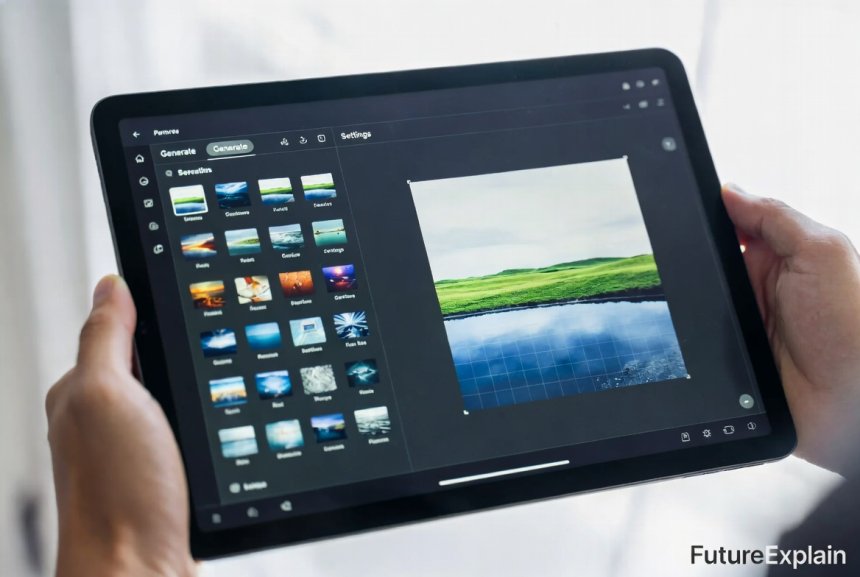
Beginner-friendly image tools generate simple visuals for blog posts, slides, or social media. They often include templates and easy export options so you can create a professional-looking image without design skills.
- Typical uses: featured images, social graphics, quick mockups.
- Beginner tip: Check licensing and commercial use rules before using generated images in paid projects.
4. No-code automation platforms
No-code automation tools connect common apps (email, cloud storage, spreadsheet) and let you build workflows with simple rules. For beginners, they are a fast way to remove repetitive tasks like saving attachments or copying form responses into a spreadsheet.
- Typical uses: automatic backups, email-to-cloud workflows, simple notifications.
- Beginner tip: Start with one small automation and verify it runs correctly before expanding.
5. Meeting transcription and note-taking
Some tools provide live transcription and then summarize points and action items. These are useful for teams and for anyone who wants to avoid taking verbatim notes during meetings.
- Typical uses: transcribing interviews, creating meeting minutes, generating follow-up task lists.
- Beginner tip: Choose a tool that supports your language and check its privacy policy when recording conversations.
How to choose between free and paid tools
Free tools are ideal for experimentation. They let you test core features and validate workflows. Paid plans often add higher usage limits, team features, stronger privacy guarantees, and integrations. Choose paid plans when you use a tool frequently, need team collaboration, or handle sensitive data.
Decision checklist
- How often will I use the tool?
- Will I process sensitive or client data?
- Do I need team collaboration or version history?
- Does the tool support the languages I need?
Simple starter workflows (step-by-step)
Workflow A — Fast newsletter draft
- Collect highlights and links in a notes app during the week.
- Use a summarizer to turn highlights into a 3–4 sentence paragraph per topic.
- Use a writing assistant to tidy the draft, suggest a subject line, and produce a short preview text.
- Perform a final human review, check links and facts, then schedule the newsletter.
Workflow B — Social graphic in 10 minutes
- Write a short caption in your editor outlining the post idea.
- Use an AI image tool with a simple prompt and a template sized for your platform.
- Download the image and schedule the post using your usual social scheduler.
Workflow C — Meeting notes to tasks
- Record the meeting (with consent) or use live transcription.
- Generate a short summary and extract action items with assigned owners.
- Push action items automatically to your task manager using an automation tool.
Privacy and safety: basic rules for beginners
Before using any AI tool, read its privacy policy and terms of service. Avoid uploading sensitive, confidential, or personally identifiable information to tools that do not explicitly allow it. When in doubt, use local editors or paid plans with stronger privacy guarantees.
- Remove or obfuscate sensitive data before uploading.
- Prefer tools with clear retention and deletion policies.
- Document which tools handle which data in your small-business workflows.
Tool categories and what to look for
- Writing assistants: easy editor, export options, change history.
- Summarizers: citation support, adjustable summary length.
- Image tools: templates, export sizes, licensing terms.
- Automation platforms: prebuilt connectors, simple triggers, test runs.
- Meeting tools: transcription accuracy, multi-language support, consent features.
Practical recommendations for first week
Try this 7-day plan to gain confidence:
- Day 1: Try a free writing assistant to draft a short email.
- Day 2: Use a summarizer on a long article you need to read.
- Day 3: Create one social graphic with an image tool.
- Day 4: Automate a simple task (e.g., save email attachments to cloud).
- Day 5: Test a meeting transcription on a short call (with consent).
- Day 6: Review privacy settings for each tool used.
- Day 7: Decide which free tools to keep and which paid features are worth investing in.
Common beginner questions
Will AI replace my job?
AI can automate repetitive tasks but rarely replaces the broader skills of judgment, creativity, and interpersonal work. For a broader view, read How AI Is Changing Jobs (And Which Jobs Are Safe).
Can these tools handle non-English languages?
Many tools support multiple languages, but accuracy varies. Always test with the specific language you need and check regional support.
Learning more and building skills
Beginner tools become more powerful when paired with basic digital skills: organizing notes, using cloud storage, and learning simple automation patterns. If you want to understand the technical foundation behind many AI tools, see How Does Machine Learning Work? Explained Simply.
Related articles in the FutureExplain series
- Best Free AI Tools You Can Use Without Technical Skills
- AI for Small Businesses: Practical Use Cases
- How to Use AI Responsibly (Beginner Safety Guide)
- What Is Workflow Automation? Beginner Explanation
- AI vs Human Creativity: Can AI Replace Creativity?
Next steps
Choose one small task to automate or speed up this week and try one free tool for it. Track whether it saves you time and adjust your workflow. If you found this useful, consider reading the follow-up article Best Free AI Tools You Can Use Without Technical Skills to explore practical tool options.
Closing note
AI tools are practical assistants when used responsibly. Start small, keep control over sensitive data, and iterate on workflows as you learn. FutureExplain’s series is designed to guide beginners step-by-step — explore related posts to build a complete, safe toolkit.
Share
What's Your Reaction?
 Like
180
Like
180
 Dislike
4
Dislike
4
 Love
40
Love
40
 Funny
10
Funny
10
 Angry
2
Angry
2
 Sad
1
Sad
1
 Wow
25
Wow
25


















Great starter guide — very actionable.
Will you cover AI accessibility features in future posts?
I worry about data retention policies — any tips?
Practical and calming tone — fits the site mission.
Can an AI tool help with meeting notes in real time?
Would be great to see tool screenshots in a follow-up.