
How Automation Saves Time in Daily Digital Life
Learn practical ways automation reduces daily digital work. This beginner-friendly guide explains common use cases, step-by-step examples, tools, safety tips, and how to measure time saved so you can automate routine tasks without coding.

How Automation Saves Time in Daily Digital Life
Introduction: Everyday digital work often includes repetitive tasks: saving attachments, sending routine emails, updating spreadsheets, or posting on social media. Automation helps by performing these tasks reliably and repeatedly so you can focus on higher-value work. This guide explains how automation reduces time spent on routine work, provides step-by-step examples for beginners, and offers practical guidance on choosing tools, measuring results, and avoiding common pitfalls.
Why automations matter for everyday life
Automation replaces repetitive manual actions with rules or short workflows. The benefits are direct:
- Time savings: Automations perform repetitive work instantly and continuously.
- Consistency: Routine tasks are done the same way every time, reducing errors.
- Scalability: Automations don''t require more staff when volume increases.
- Focus: You reclaim attention for strategic or creative work.
Common daily automation scenarios
Below are practical examples anyone can apply within a few minutes to hours.
Email management
Email is a large time sink. Simple automations can free hours per week:
- Auto-label incoming messages from important senders and route them to specific folders.
- Send an automated acknowledgement for common queries (e.g., "Thanks — we''ll get back in 48 hours").
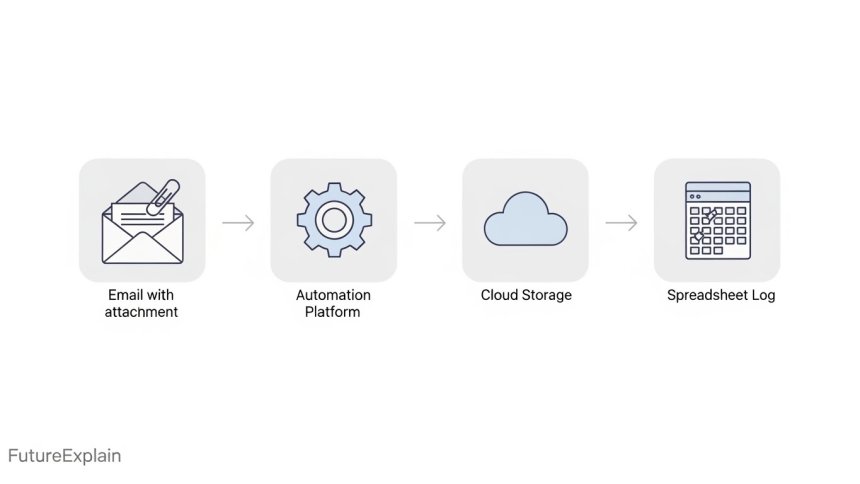
- Auto-save attachments from specific senders into cloud storage (Google Drive, Dropbox) and record a link in a spreadsheet.
Calendar and scheduling
- Auto-add meeting notes templates when a new calendar event is created.
- Send reminders to participants using SMS or chat when the event is approaching.
- Automatically block focus time after intensive meetings.
Files and backups
- Auto-copy important attachments to a dedicated cloud folder and name them with a timestamp.
- Schedule daily or weekly exports of form responses to CSV and store them securely.
Social posting and content
- Automatically queue a published blog post into social schedulers and notify your team channel.
- Repurpose content: when you publish an article, create a draft social post with an excerpt and link.
Personal productivity
- When a task is marked complete in your task manager, log the time spent into a spreadsheet for weekly review.
- Use automations to generate daily briefing emails with calendar items, unread messages, and key metrics.
How much time can you realistically save?
Time saved varies by task frequency and complexity. Simple rules of thumb:
- High-frequency, low-effort tasks (e.g., saving attachments) can save 10–30 minutes per day.
- Moderate tasks (e.g., reporting, social posting) can save 1–3 hours per week.
- Complex multi-step processes (e.g., multi-channel lead routing) may save several hours per month for small teams.
To quantify savings precisely, track how long you currently spend on a task and multiply by the estimated automation frequency. Automations that save many small bits of time add up quickly.
Pick the right automation approach
Not every task should be automated. Use a simple decision checklist:
- Frequency: How often does the task occur? Higher frequency favors automation.
- Time per occurrence: Even small amounts of time add up at scale.
- Complexity: Can the task be expressed as a rule or a short workflow?
- Risk: Does the task involve sensitive actions (payment, deletion)? If so, prefer human review steps.
Step-by-step example: Save email attachments automatically
This is a common and useful first automation for many users. The example uses a typical no-code integrator as the platform (Zapier, Make) and Google Drive.
Goal
When an email arrives with an invoice attachment, save the PDF to a Google Drive folder and add a row to a tracking spreadsheet.
Steps
- Choose a trigger: New email matching search criteria (sender, subject, or has:attachment).
- Filter: Only proceed if the email subject contains "Invoice" or attachments are PDF.
- Action 1 — Save file: Upload the attachment to a Google Drive folder, name using date and invoice number if present.
- Action 2 — Record: Insert a row in Google Sheets with filename, sender, date, and Drive link.
- Test: Send a sample email to confirm files and rows are created.
- Monitor: Check the automation log for the first week and add an error notification step.
This small automation removes the manual steps of downloading, renaming, and uploading — saving minutes per invoice that quickly become hours.
Step-by-step example: Weekly digest email
Goal: Send a weekly summary of key items (new leads, open tasks, calendar highlights) to yourself or a small team.
- Trigger: Time-based — every Monday at 07:00.
- Collect data: Pull new lead rows from a spreadsheet, count open tasks from your task manager, grab calendar events for the next 7 days.
- Format: Build a summary text or HTML block with bullet points and links.
- Send: Email or chat the digest to selected recipients.
- Test and refine: Ensure the formatting is readable both on mobile and desktop.
Weekly digests save the time of manual status checks and help keep teams aligned without meetings.
Tools for everyday people
For non-technical users, consider:
- Zapier — great for quick app-to-app automations and many templates.
- Make (Integromat) — visual canvas for more complex multi-step flows.
- Airtable — combine table views with automations for data-first workflows.
- IFTTT — simple consumer-focused triggers for home and social tasks.
For a comparative guide to tools, see best-automation-tools-for-non-technical-users, and to learn the broader idea of automation, read what-is-automation-a-beginners-guide.
Designing automations that respect privacy and security
Automations often touch personal or sensitive information. Follow simple rules:
- Minimize data: only collect fields you need.
- Use service accounts or app-specific credentials with least privilege.
- Enable encryption for stored or transmitted data where available.
- Implement retention and deletion policies for logs and outputs.
If AI features are involved (summaries, classification), review our guide on safe AI usage: how-to-use-ai-responsibly-beginner-safety-guide.
Monitoring, errors, and fallback
Automations should have monitoring and error-handling so small failures don''t become large problems:
- Add a notification step on failure (email or chat) that includes the error details.
- Log runs to a spreadsheet or logging service to inspect trends.
- Design fallback actions for critical automations: for example, if saving an invoice fails, send the email to a human queue.
Measuring impact: simple KPIs
Measure before and after to know true impact. Useful metrics:
- Time saved per week: estimate time previously spent and measure changes in workload.
- Run success rate: percent of automated runs that succeed without intervention.
- Error volume: number of failed runs requiring human action.
- Cost vs savings: compare tool subscription cost to hours saved.
When automation increases quality, not just speed
Automation can improve accuracy and consistency. For example:
- Automatically formatting invoices or reports removes human variation and reduces disputes.
- Consistent tagging of incoming requests makes routing and analytics more reliable.
Avoid these common beginner mistakes
- Automating the wrong thing: Don''t automate tasks that need human judgment or empathy.
- No monitoring: Without logs, errors pile up unnoticed.
- Complex initial projects: Start small; prototypes help validate the idea.
- Ignoring edge cases: Add checks for unusual inputs (large files, missing fields).
Practical plan to automate your week
Use this 4-step plan to get started this week:
- Inventory (30 minutes): List daily and weekly repetitive tasks and estimate minutes spent on each.
- Prioritize (15 minutes): Choose tasks with high frequency and easy automation first.
- Prototype (1–3 hours): Build a simple automation using Zapier, Make, or Airtable templates.
- Monitor & iterate (1 week): Check logs, adjust mappings, and add error notifications.
When to move beyond no-code
No-code tools are powerful, but there are times to involve developers:
- When you need custom authentication or private APIs.
- For complex data transformations and high reliability.
- When automations must be tested in staging and deployed with version control.
For how automation and AI combine in larger systems, read intelligent-automation-explained-ai-and-automation.
Long-term practices for sustainable automation
- Document each automation: purpose, owner, inputs, outputs, run schedule.
- Review automations quarterly and retire ones that no longer add value.
- Train staff on safe automation practices and a governance checklist.
Further reading in the FutureExplain series
To build broader context and practical skills, explore these related articles:
- best-automation-tools-for-non-technical-users — tools and when to pick them.
- no-code-vs-ai-tools-what-should-beginners-choose — deciding between no-code and AI features.
- how-does-machine-learning-work-explained-simply — understanding machine learning that powers some automations.
- top-ai-tools-for-beginners-to-boost-productivity — AI tools that complement automation efforts.
Conclusion
Automation is one of the most practical ways to reclaim time in daily digital life. Start by automating small, frequent tasks and measure real time saved. Choose the right tools for your needs, monitor runs, and keep humans in the loop for sensitive decisions. Over time, incremental automations compound into substantial productivity gains and more reliable processes.
Quick action checklist
- Pick one repetitive task and automate it this week.
- Use templates to accelerate the build.
- Enable error notifications and log runs.
- Measure time saved after two weeks and iterate.
Share
What's Your Reaction?
 Like
1100
Like
1100
 Dislike
12
Dislike
12
 Love
250
Love
250
 Funny
40
Funny
40
 Angry
3
Angry
3
 Sad
2
Sad
2
 Wow
180
Wow
180


















Well-written and practical — I'm sharing this with our operations team.
Question: How do you recommend training staff to use automations responsibly?
Train staff with hands-on exercises, a governance checklist, and pair novices with experienced users. Emphasize monitoring, documentation, and rollback procedures.
This article convinced me to automate our weekly reporting. Thank you.
Question: Is there a recommended place to store automation logs for small teams?
For small teams, a shared Google Sheet or an Airtable base can work well. As you scale, consider a structured logging service or cloud database with retention rules.
Constructive: include a sample privacy checklist for automations.
We will add a privacy checklist in a follow-up focused on compliance and data minimization. Good suggestion.
We tracked time saved after automations and it motivated more automation projects. Thanks for mentioning metrics.