
Automation Made Easy: Simple Tech Tips for Everyday Life
This comprehensive beginner's guide provides practical, easy-to-implement automation techniques for everyday digital life. We explore simple ways to automate email management, file organization, social media posting, and repetitive computer tasks without needing technical skills. The article covers built-in tools in popular platforms like Gmail, Windows, Mac, and smartphones that most users overlook. We demonstrate how to set up automatic email filters, schedule social media posts, organize files with rules, and automate backups. Each tip includes step-by-step instructions suitable for complete beginners. We also introduce accessible automation platforms like IFTTT and Zapier for connecting different apps, showing real-world examples like saving email attachments to cloud storage automatically. The guide emphasizes starting small with one automation that solves a specific daily annoyance.

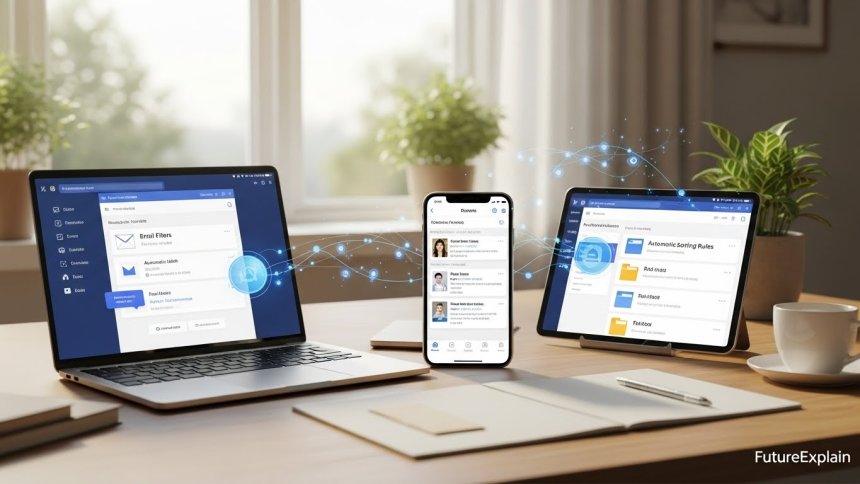
Making Technology Work for You: Simple Automation Anyone Can Master
In our increasingly digital world, we often find ourselves performing the same repetitive tasks day after day. From sorting emails to organizing files and managing social media, these small tasks can consume hours each week without us realizing it. The good news is that you don't need to be a programmer or tech expert to automate these processes. With today's user-friendly tools and built-in features, anyone can set up simple automations that save time and reduce mental clutter.
This guide focuses on practical, immediately applicable automation tips that require no coding knowledge or complex setup. We'll explore tools you already have access to—in your email, operating system, smartphone, and popular apps—and show you how to make them work smarter for you. According to recent productivity studies, the average office worker spends 69 days per year on repetitive tasks that could be automated. Even saving 30 minutes a day through simple automation adds up to 10 extra days per year for more meaningful work or leisure.
Understanding Everyday Automation
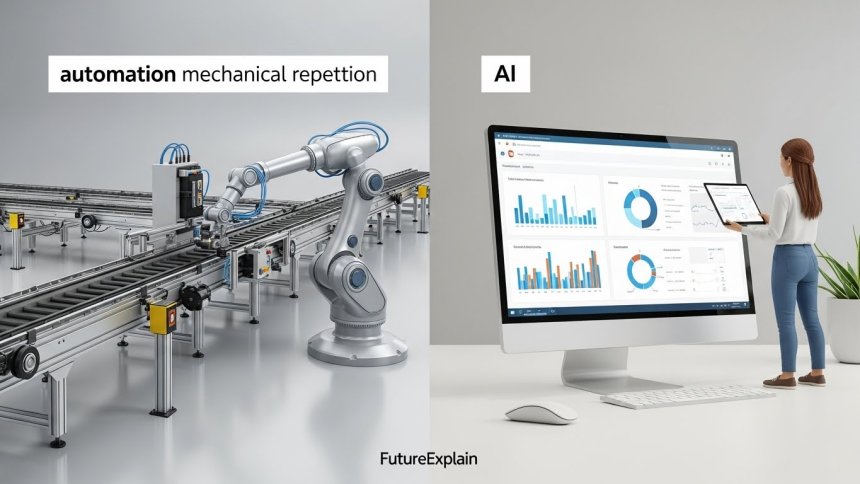
Before we dive into specific tips, let's clarify what we mean by "everyday automation." Unlike industrial automation or complex business systems, everyday automation focuses on:
- Repetitive digital tasks you perform regularly
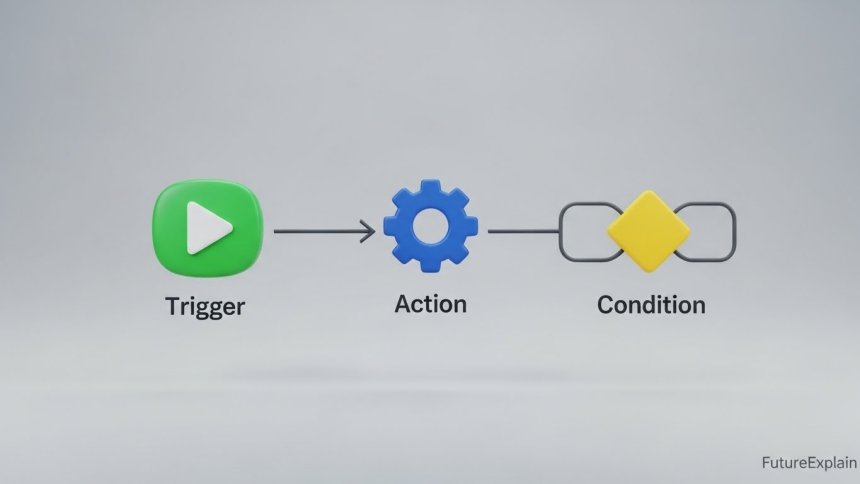
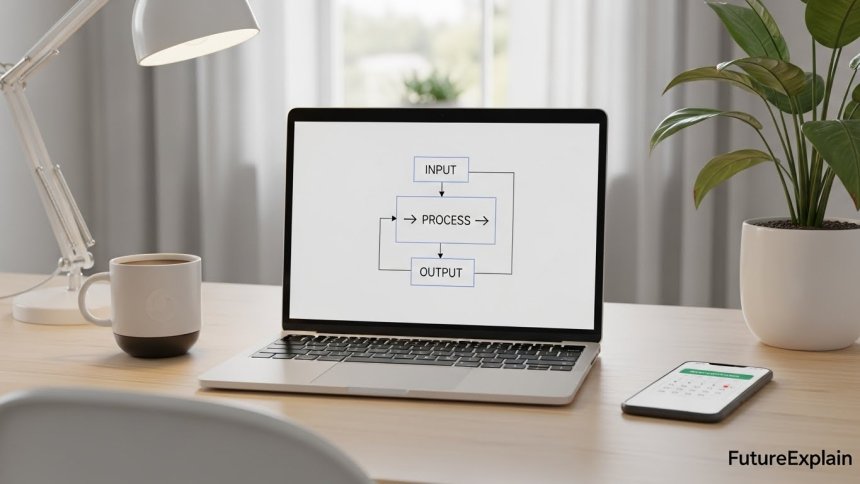
- Simple triggers and actions (when X happens, do Y)
- Built-in tools that don't require additional software
- Time-saving routines that reduce manual effort
Think of automation as teaching your devices to handle predictable, routine tasks so you don't have to. It's like setting up dominoes—once you arrange them properly, a small nudge creates a chain reaction that accomplishes what would normally require multiple manual steps. For a foundational understanding of what automation is, check out our article on what is automation.
Email Automation: Reclaim Your Inbox
Email remains one of the biggest time drains in digital life. The average professional spends 28% of their workweek managing email. These simple automations can dramatically reduce that time.
Automatic Filtering and Labeling
Every major email service (Gmail, Outlook, Yahoo, Apple Mail) includes filtering capabilities. Here's how to use them effectively:
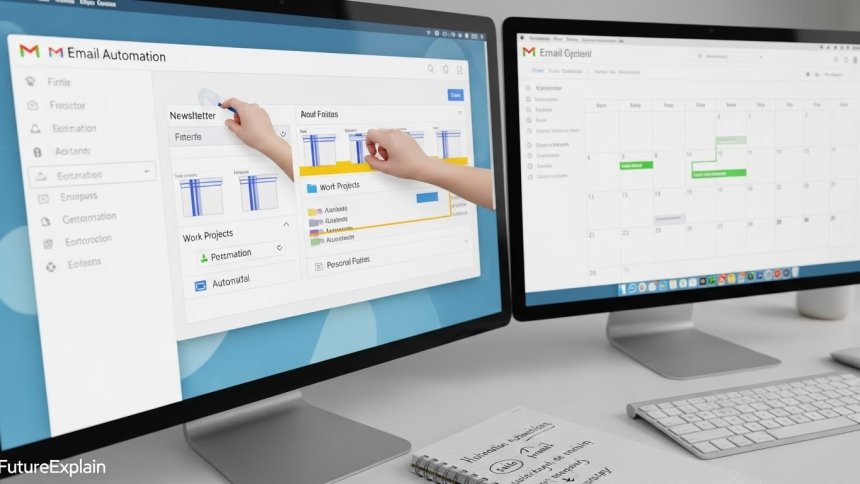
- Newsletter management: Create a filter for newsletters that automatically labels them "Read Later" and skips the inbox
- Project organization: Set up filters for emails containing specific keywords or from certain senders to go to project-specific folders
- Priority sorting: Create rules that flag emails from important contacts or with urgent subject lines
- Unsubscribe automation: Use tools like Unroll.me (with privacy considerations) or built-in features to batch unsubscribe
To create a filter in Gmail: Click the search box → Show search options → Enter criteria → Create filter → Choose actions (skip inbox, apply label, etc.). The same principle applies to other email clients with slightly different menus.
Template Responses for Common Replies
If you find yourself typing similar responses repeatedly, create email templates. Most email services offer this feature:
- Canned responses in Gmail: Enable in Settings → Advanced → Canned Responses
- Quick Parts in Outlook: Save commonly used text blocks for quick insertion
- Signature variations: Create different signatures for different types of correspondence
For more advanced email automation, you can connect your email to other tools using platforms mentioned later in this guide.
Scheduled Sending for Optimal Timing
Research shows emails sent at certain times have higher open rates. Instead of remembering to send emails at optimal times, schedule them:
- Gmail Schedule Send: Write your email, click the arrow next to Send, choose "Schedule send"
- Outlook Delay Delivery: In a new message, go to Options → Delay Delivery
- Third-party tools: Boomerang for Gmail offers more sophisticated scheduling options
This automation ensures your messages arrive when recipients are most likely to engage with them, without you needing to be at your computer at specific times.
File and Document Automation
Digital clutter creates mental clutter. These automations help maintain organized digital spaces automatically.
Automatic File Organization
Both Windows and Mac offer ways to automatically organize files:
- Windows File Explorer rules: Right-click a folder → Properties → Customize → Optimize this folder for "General items" or specific types
- Mac Smart Folders: In Finder, File → New Smart Folder → set criteria (date, type, keywords) → Save
- Dropbox/Google Drive rules: Both services can automatically sort uploaded files based on name, type, or source
For example, you can set up a rule that automatically moves all downloaded PDFs to a "Tax Documents" folder, or all screenshots to a "Reference Images" folder.
Automated Backups and Syncing
Manual backups often get forgotten until it's too late. Set these up once and never worry again:
- Windows File History: Settings → Update & Security → Backup → Add a drive → Turn on
- Mac Time Machine: System Preferences → Time Machine → Select Backup Disk → Turn on
- Cloud sync rules: Services like Dropbox and Google Drive can automatically sync specific folders
- Cross-device syncing: Set up documents, photos, and notes to sync automatically across your devices
These automations ensure you never lose important files and can access them from any device without manual transfers.
Automatic Document Naming and Versioning
Stop wasting time creating complex folder structures and naming conventions manually:
- Auto-save versions: Google Docs and Microsoft 365 automatically save versions you can revert to
- Template automation: Create document templates that auto-fill date, project name, or other metadata
- Batch renaming tools: Built-in tools in Windows and Mac can rename multiple files at once based on patterns
Social Media and Communication Automation
Managing multiple social accounts and communication channels doesn't have to be a full-time job.
Scheduled Social Media Posts
Instead of posting in real-time, schedule your content:
- Native scheduling: Facebook, LinkedIn, and Twitter/X offer built-in scheduling features
- Third-party tools: Buffer, Hootsuite, and Later offer free tiers for basic scheduling
- Content calendars: Plan a week or month of content in one sitting, then let automation handle the posting
This approach allows you to maintain a consistent online presence without being constantly connected.
Automated Messaging and Notifications
Set up automatic responses for common situations:
- Out-of-office replies: Configure automatic responses when you're unavailable
- Messenger auto-replies: Facebook Messenger and WhatsApp offer automated response options for businesses
- Smart notifications: Use phone settings to automatically silence notifications during certain hours or events
These automations help manage expectations and reduce interruptions during focused work time.
Smartphone Automation
Your phone is a powerful automation tool that most people underutilize.
Built-in Automation Features
Both iOS and Android offer automation capabilities:
- iOS Shortcuts: Create automated workflows for common tasks (share location when leaving work, etc.)
- Android Routine: Set up routines based on time, location, or actions (mute phone at bedtime, etc.)
- Smart home integration: Automate lights, thermostat, and other devices based on your location or schedule
These built-in tools require no additional apps and can save multiple daily interactions.
App-Specific Automation
Many individual apps offer automation features:
- Photo organization: Google Photos and iCloud automatically organize and back up your photos
- Finance tracking: Banking apps can automatically categorize expenses and send alerts
- Health tracking: Fitness apps can automatically log workouts and health metrics
Connecting Apps with Automation Platforms
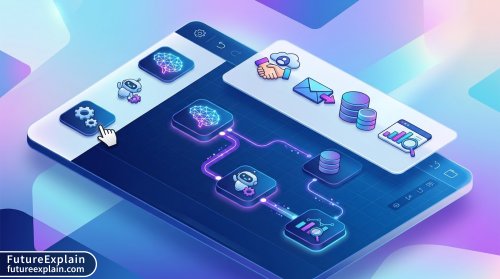
For more advanced automations that connect different services, these platforms make it simple:
IFTTT (If This Then That)
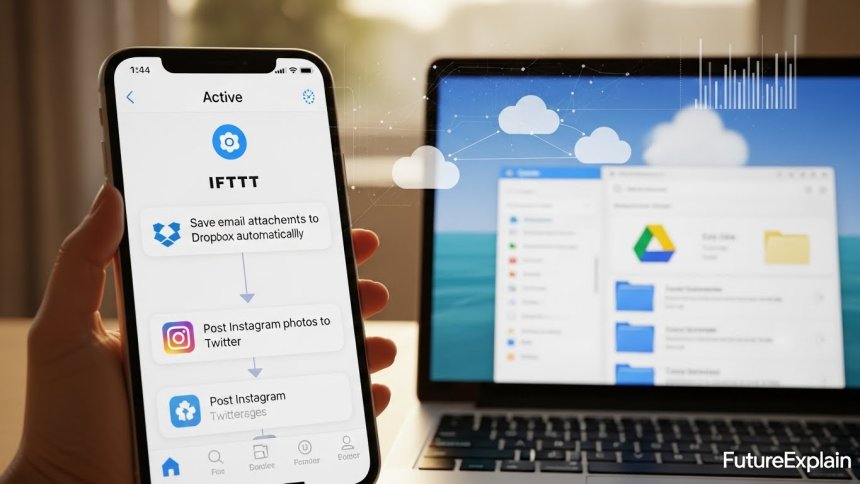
IFTTT offers thousands of pre-made "applets" that connect different services:
- Save email attachments to cloud storage automatically
- Post Instagram photos to Twitter with specific hashtags
- Get weather alerts sent to your phone or email
- Log workouts to a spreadsheet automatically
The free tier offers plenty of functionality for personal automation needs.
Zapier
Zapier offers more business-focused automations but has free options for personal use:
- Connect email to task managers (turn emails into to-do items)
- Automate data entry between different apps
- Create custom notifications based on triggers from various services
Both platforms use simple "if this happens, then do that" logic that anyone can understand.
Automation for Daily Routines
Beyond specific apps, you can automate entire daily routines:
Morning Routine Automation
- Smart alarm: Use phone features to wake you with gradual light or calming sounds
- News briefing: Set up automated news summaries from your preferred sources
- Traffic alerts: Get automatic traffic updates for your commute route
- Task list generation: Automatically create daily task lists based on calendar events
Work Routine Automation
- Focus time scheduling: Automatically block calendar time for deep work
- Meeting preparation: Set up automatic reminders with relevant documents before meetings
- Time tracking: Use automated tools to track how you spend your work time
- Break reminders: Get automatic notifications to take regular breaks
Evening Routine Automation
- Digital sunset: Automatically reduce screen blue light in the evening
- Next day preparation: Get automatic summaries of tomorrow's schedule and tasks
- Device charging: Use smart plugs to automate charging schedules for optimal battery health
- Sleep tracking: Automatically track sleep patterns without manual input
Getting Started: Your First Automation Project
If you're new to automation, start with one simple project:
Week 1: Identify One Pain Point
Look for a task you do daily that's repetitive and predictable. Good starter projects include:
- Automatically sorting newsletters out of your main inbox
- Scheduling social media posts for the coming week
- Setting up automatic phone backups
- Creating email templates for common responses
Week 2: Implement and Test
Choose the simplest tool for the job and set up your automation. Test it thoroughly to make sure it works as expected. Document what you've done so you can replicate or adjust it later.
Week 3: Evaluate and Refine
After a week of use, evaluate: Is it saving time? Are there any issues? Make adjustments as needed. Our article on workflow automation can help you think through more complex automations.
Week 4: Add Another Automation
Once you're comfortable with your first automation, add another. Gradually build your automation toolkit without becoming overwhelmed.
Common Automation Mistakes to Avoid
As you begin automating, watch out for these common pitfalls:
Over-Automating Too Quickly
Don't try to automate everything at once. Start with one or two simple automations and gradually add more as you become comfortable.
Neglecting Maintenance
Automations need occasional checking and updating, especially when software changes. Schedule quarterly reviews of your automations.
Sacrificing Quality for Automation
Some tasks still benefit from human touch. Don't automate personal communications or creative work that requires nuance.
Security Oversights
Be careful what permissions you grant to automation tools. Only use reputable services and review privacy settings regularly.
Advanced Tips for Growing Your Automation Skills
Once you're comfortable with basic automations, explore these more advanced options:
Conditional Logic
Add conditions to your automations: "If this happens AND this condition is met, then do that." This makes automations more intelligent and context-aware.
Multi-Step Automations
Create chains of actions: "When I save a file here, rename it, copy it to backup, and notify me." Platforms like Zapier excel at these workflows.
API Integration Basics
Some services offer API access (Application Programming Interface) that allows for more custom integrations. Many no-code platforms make APIs accessible without programming knowledge.
The Future of Personal Automation
Automation technology continues to evolve. Emerging trends include:
AI-Powered Automation
Artificial intelligence is making automation smarter and more adaptive. Instead of rigid rules, AI can learn your patterns and suggest automations. For more on this convergence, see our article on intelligent automation.
Voice-Activated Automation
Voice assistants are becoming more capable of handling complex automation sequences through natural language commands.
Predictive Automation
Systems that anticipate your needs before you express them, based on your behavior patterns and context.
Conclusion: Start Small, Think Big
Automation doesn't require technical expertise or expensive software. The most impactful automations often use tools you already have. Start with one repetitive task that annoys you, automate it, and enjoy the immediate time savings and mental clarity.
Remember that the goal of automation isn't to eliminate human involvement entirely, but to free up your time and mental energy for more meaningful work, creativity, and relationships. By gradually implementing the tips in this guide, you can transform your relationship with technology from one of constant management to one of effortless assistance.
As you become more comfortable with automation, you'll discover new ways to streamline your digital life. The key is to start small, be consistent, and always keep the human element in mind. Automation should serve you, not the other way around.
Share
What's Your Reaction?
 Like
1350
Like
1350
 Dislike
8
Dislike
8
 Love
380
Love
380
 Funny
55
Funny
55
 Angry
3
Angry
3
 Sad
2
Sad
2
 Wow
240
Wow
240












As someone who was intimidated by technology, this article made automation accessible. The simple language and practical examples gave me confidence to start automating my digital life.
The security considerations for smart home automation are crucial. I almost connected my entire home to a single automation platform without considering the privacy implications. Your warnings saved me from potential issues.
Automated expense categorization through banking apps has made budgeting simple. I can see exactly where my money goes each month without manual tracking.
The comparison between different automation platforms helped me choose the right tool for my needs. I started with built-in features, moved to IFTTT, and now use Zapier for business workflows.
Automated traffic alerts have saved me hours in commute time. Getting alerts about accidents or construction before I leave lets me choose alternative routes proactively.
The advice to start small and be consistent resonates. I've tried and failed with automation before by being too ambitious. Your approach of one automation per week is sustainable.