Image Upscaling & Restoration With AI: Practical Guide
This comprehensive guide demystifies AI-powered image upscaling and restoration for beginners. You'll learn how artificial intelligence can transform low-resolution, blurry, or damaged photos into clear, detailed images. We cover the fundamental concepts behind super-resolution AI, compare different approaches (GANs, diffusion models, traditional upscaling), and provide practical step-by-step workflows using both free and paid tools. The guide includes real-world examples, ethical considerations when restoring historical images, batch processing techniques for large collections, and quality assessment methods. Whether you're working with old family photos, enhancing product images, or improving digital artwork, this guide provides everything you need to start using AI image enhancement effectively.

Introduction: The Magic of AI Image Enhancement
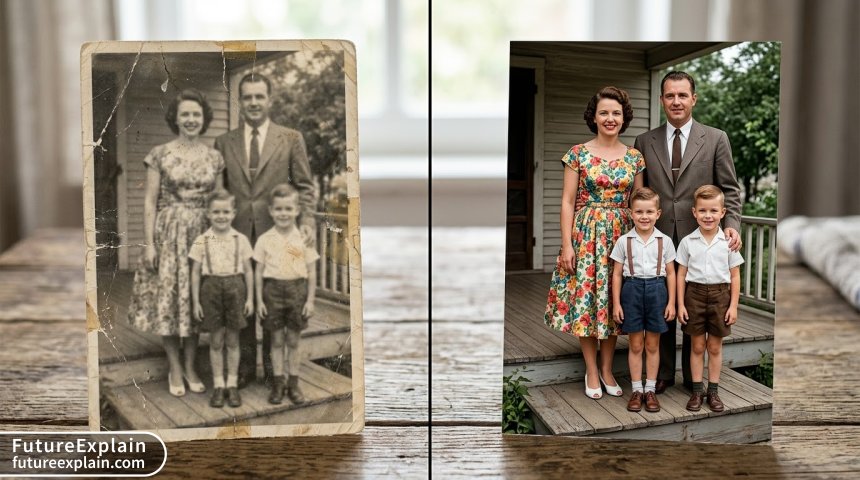
Have you ever found an old family photo that's faded, scratched, or too small to print properly? Or perhaps you've taken a photo with your phone that looked great on the screen but became pixelated when you tried to enlarge it? These are common frustrations for anyone who works with images, whether you're a family historian, a small business owner, a content creator, or just someone who values visual memories.
Traditional image editing software can only do so much. You can sharpen edges slightly, adjust colors, or try to clone out scratches, but you can't add detail that wasn't there in the first place. This is where artificial intelligence changes everything. AI image upscaling and restoration tools can analyze patterns, understand what an image should look like, and generate realistic details that make low-resolution or damaged photos look like they were taken yesterday with a high-end camera.
In this practical guide, we'll explore how AI-powered image enhancement works, compare the best tools available in 2025, and walk through complete workflows you can use today. Whether you're completely new to image editing or have some experience but want to leverage AI, this guide will provide the knowledge and practical steps you need.
Understanding the Basics: How AI Image Enhancement Works
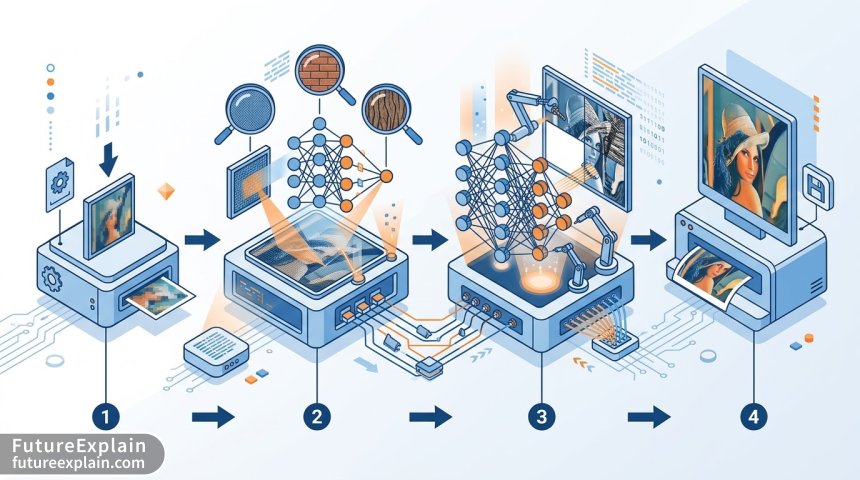
Before diving into tools and techniques, it's helpful to understand what's happening behind the scenes when you use AI for image enhancement. Traditional upscaling methods (like the ones built into most photo editors) use mathematical algorithms to guess what pixels should fill in the gaps when enlarging an image. These methods, such as bilinear or bicubic interpolation, simply average nearby pixels to create new ones. The result is often blurry or blocky because no actual new detail is created.
AI-powered upscaling takes a fundamentally different approach. Instead of just filling gaps with averages, AI models have been trained on millions of image pairs—low-resolution and high-resolution versions of the same photos. By analyzing these pairs, the AI learns patterns about how details typically appear in different contexts. For example, it learns what human eyes should look like at different resolutions, how textures like wood grain or fabric weave scale up, and how edges transition from blurry to sharp.
The Three Main AI Approaches to Image Enhancement
Not all AI image enhancement uses the same technology. Understanding these different approaches will help you choose the right tool for your specific needs:
- Generative Adversarial Networks (GANs): This approach uses two neural networks that work against each other. One network (the generator) creates enhanced images, while the other (the discriminator) tries to spot the differences between AI-enhanced images and real high-quality photos. Through this competition, both networks improve. GANs are particularly good at creating realistic textures and details that weren't in the original image.
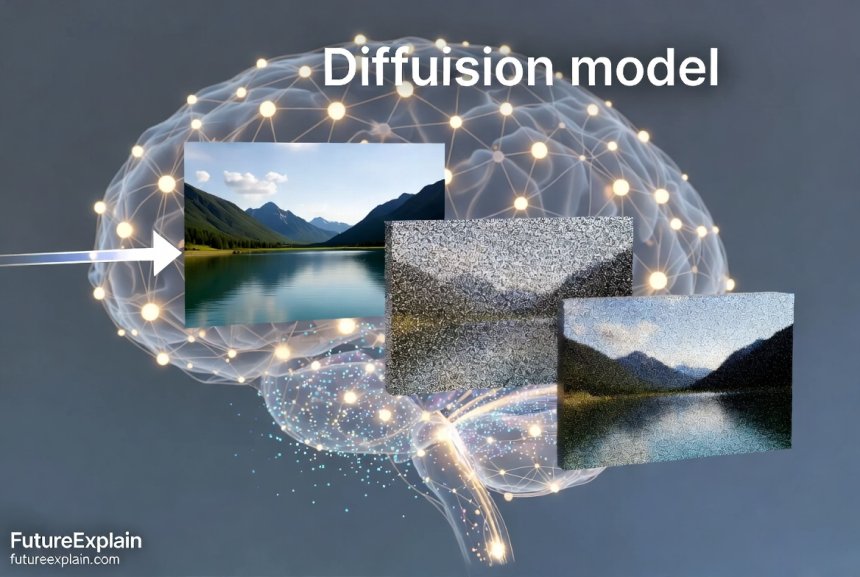
- Diffusion Models: These work by gradually adding noise to a high-quality image during training, then learning to reverse the process. When enhancing an image, diffusion models start with your low-quality image and progressively "denoise" it while adding realistic details. This approach has become increasingly popular for its ability to generate highly realistic results with good coherence.
- Transformer-based Models: Originally developed for natural language processing, transformers have been adapted for computer vision tasks. They excel at understanding the context and relationships between different parts of an image, which helps maintain consistency when enhancing complex scenes.
The Complete AI Image Enhancement Workflow
A successful image enhancement project involves more than just running a photo through an AI tool. Following a structured workflow will give you consistently better results and help you develop your skills more effectively. Here's a comprehensive step-by-step approach:
Step 1: Assessment and Preparation
Before you even open an enhancement tool, examine your image carefully. Ask yourself these questions:
- What's the current resolution and file format?
- What types of damage or quality issues are present (scratches, fading, noise, compression artifacts)?
- What's the intended use of the enhanced image (web display, printing, archival)?
- Are there any ethical considerations (historical photos, people's privacy)?
Preparation is crucial. If you're working with physical photos, scan them at the highest resolution possible (600 DPI or higher for small photos). Clean the scanner glass and photo surface to avoid adding new defects. For digital images, always work on copies, never originals.
Step 2: Initial Cleaning (Pre-AI Processing)
Some issues are better addressed before AI enhancement. Use basic photo editing software to:
- Crop and straighten the image
- Remove large dust spots or scratches using clone/healing tools
- Adjust basic exposure and contrast if severely off
- Convert to appropriate color profile (sRGB for web, Adobe RGB for print)
These manual fixes help the AI focus on what it does best—adding detail and enhancing textures—rather than getting confused by major flaws.
Step 3: Choosing the Right AI Tool and Settings
Different tools excel at different tasks. Here's a practical decision guide:
| Image Type | Recommended Approach | Example Tools | Key Settings |
|---|---|---|---|
| Portraits & Faces | GAN-based with face enhancement | Topaz Photo AI, Remini | High face recovery, moderate texture |
| Landscapes & Nature | Diffusion models | Stable Diffusion upscalers, Magnific | High detail, natural texture |
| Text & Documents | Specialized document enhancement | Adobe Super Resolution, Let's Enhance | Sharpen text, remove artifacts |
| Art & Illustrations | Art-optimized models | Upscale.media, Waifu2x | Preserve artistic style |
| Historical Photos | Combination approach | Multiple tools in sequence | Conservative enhancement |
Step 4: The Enhancement Process
When running your image through AI enhancement:
- Start with conservative settings—it's easier to add more enhancement than to remove over-processing
- Process in stages if needed (e.g., denoise first, then upscale)
- Save intermediate versions so you can backtrack if needed
- Consider processing different parts of the image separately if they have different needs
Step 5: Post-Processing and Quality Control
After AI enhancement, the image often needs final touches:
- Check for AI artifacts (strange textures, duplicated patterns)
- Adjust color balance if the AI has shifted colors
- Add subtle sharpening if needed (but avoid over-sharpening)
- Compare before/after to ensure important details weren't lost
Top AI Image Enhancement Tools in 2025: A Practical Comparison
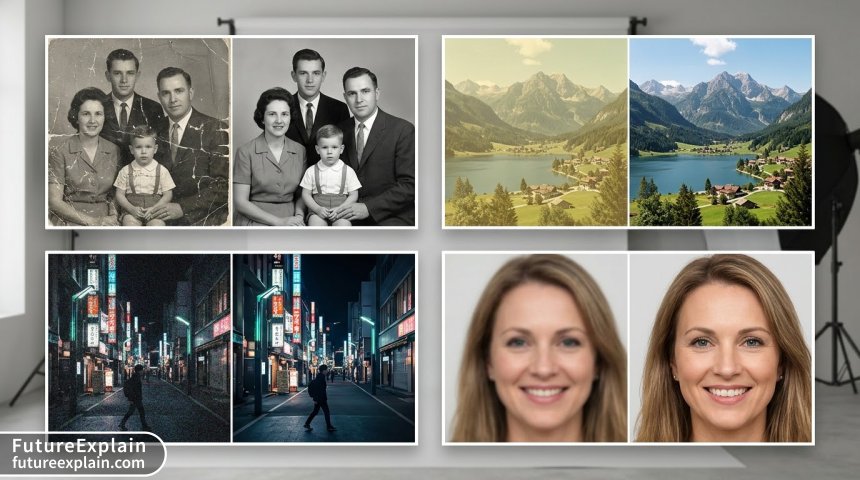
The AI image enhancement landscape has evolved rapidly. Here's an updated look at the best tools available, categorized by their strengths and ideal use cases:
1. Topaz Labs Suite (Photo AI, Gigapixel AI, DeNoise AI)
Best for: Professional photographers and serious enthusiasts who need maximum control
Key Features: Topaz has been a leader in AI image enhancement for years. Their tools use sophisticated GAN models trained on specific image types. Photo AI combines multiple enhancement functions, while Gigapixel AI focuses specifically on upscaling (up to 600% enlargement). The standalone DeNoise AI remains one of the best noise reduction tools available.
Workflow Tip: For best results with Topaz tools, process images in this order: DeNoise AI first (if needed), then Gigapixel AI for upscaling, then Photo AI for final enhancements.
2. Adobe Super Resolution & Enhance
Best for: Users already in the Adobe ecosystem (Lightroom, Photoshop)
Key Features: Adobe's AI enhancement is built directly into Lightroom and Camera Raw, making it incredibly convenient for photographers. The "Enhance" feature combines super-resolution with improved demosaicing and noise reduction. While it offers less manual control than specialized tools, its integration and ease of use are unmatched.
Workflow Tip: In Lightroom, always apply basic edits before using Super Resolution. The AI works on the raw data, so adjustments made after enhancement will be more precise.
3. Free & Open Source Options
Best for: Beginners, those on a budget, or users needing to process many images
- Upscayl: Free desktop application that uses various open-source models. Excellent for batch processing.
- Real-ESRGAN: Command-line tool with exceptional results, but requires technical knowledge to set up.
- Online Tools: Let's Enhance, ImgUpscaler, and Upscale.media offer free tiers with limitations.
4. Specialized Tools for Specific Needs
- Remini: Exceptional for facial enhancement and old portrait restoration
- Magnific AI: Uses diffusion models for creative upscaling with "imagination"
- AVCLabs Photo Enhancer AI: Good balance of ease of use and quality
- ON1 Resize AI: Formerly Genuine Fractals, excellent for large prints
Advanced Techniques: Beyond Basic Upscaling
Once you're comfortable with basic AI enhancement, these advanced techniques can help you tackle more challenging projects:
Batch Processing for Large Collections
If you have hundreds of photos to enhance (like digitizing a family photo collection), manual processing isn't practical. Here's an efficient batch workflow:
- Organize and categorize photos by type (portraits, landscapes, documents)
- Create presets for each category in your chosen tool
- Process in batches using folder monitoring or batch features
- Quality check samples from each batch before full processing
- Use automated naming to keep original and enhanced files organized
Most professional tools (Topaz, Adobe) include batch processing. For free tools, Upscayl offers excellent batch capabilities. Always keep backups of originals and enhanced files in separate locations.
Combining Multiple AI Tools
Sometimes one tool isn't enough. A strategic combination can yield superior results:
- Use a dedicated noise reduction tool before upscaling
- Process different parts of an image with different tools (e.g., faces with Remini, background with Topaz)
- Use one tool for upscaling and another for color restoration
The key is understanding each tool's strengths and creating a workflow that leverages them appropriately. Always work on copies and maintain a non-destructive workflow.
Ethical Restoration of Historical Images
Restoring historical photos raises unique ethical questions. When working with images from the past:
- Respect authenticity: Don't remove historically significant damage that tells part of the story
- Avoid anachronisms: Be careful with colorization—research period-appropriate colors
- Consider cultural context: Some communities have specific protocols for handling images of ancestors
- Document your changes: Keep records of what you altered for future reference
- Get permission when possible: For images of identifiable people or private collections
Historical preservation organizations often prefer conservative restoration that maintains the image's archival integrity while making it more accessible.
Common Challenges and Solutions
Even with advanced AI tools, you'll encounter challenges. Here are solutions to common problems:
Problem: AI Creates "Plastic" or Over-Processed Looks
Solution: Reduce enhancement strength, use more conservative models, or blend the enhanced version with the original using layer opacity in Photoshop or similar software. Some tools have a "natural" or "conservative" mode specifically for this issue.
Problem: Text Becomes Illegible or Artistic Style Is Lost
Solution: Use tools specifically designed for text or art upscaling. For mixed-content images, consider processing text areas separately or using masking to protect them during enhancement.
Problem: Faces Look Unnatural or "AI-ish"
Solution: Tools like Remini or Topaz Photo AI's face recovery feature are specifically trained on facial features. For group photos, you might need to enhance faces individually and composite them back into the image.
Problem: Colors Shift Unpredictably
Solution: Work in a color-managed workflow. Save original color profiles, and consider doing color correction after AI enhancement rather than before. Some tools have color preservation options.
Quality Assessment: How to Judge Your Results
Beginners often struggle to evaluate whether an AI-enhanced image is actually better or just differently processed. Here's a practical framework for assessment:
- Detail Preservation: Are important details preserved or enhanced without becoming unnatural?
- Texture Quality: Do textures (skin, fabric, natural surfaces) look realistic or artificial?
- Edge Integrity: Are edges clean and well-defined without halos or artifacts?
- Color Accuracy: Have colors been preserved or appropriately enhanced?
- Overall Naturalness: Does the image look like it could have been captured at this quality?
Create a checklist for your projects and compare results side-by-side at 100% zoom. Sometimes stepping away and returning with fresh eyes helps. Also consider getting feedback from others—what looks over-processed to you might look perfect to someone else, or vice versa.
Future Trends in AI Image Enhancement
The field continues to evolve rapidly. Here are trends to watch in 2025 and beyond:
- Real-time Enhancement: AI enhancement built directly into cameras and phones
- Context-Aware Processing: AI that understands the content and applies appropriate enhancement
- 3D from 2D: Creating three-dimensional models from enhanced 2D images
- Video Enhancement: Applying similar techniques to video footage
- Personalized Models: AI trained on your specific style preferences
Getting Started: Your First AI Enhancement Project
Ready to try AI image enhancement? Here's a simple starter project:
- Choose a moderately challenging photo (slightly blurry, some noise, but not severely damaged)
- Download a free trial of Topaz Photo AI or use Upscayl (completely free)
- Make a copy of your image and work on the copy
- Start with default settings and process the image
- Compare before/after at 100% zoom
- Adjust one setting at a time to see how it affects the result
- Save your enhanced version with a clear filename (e.g., "originalname_enhanced.jpg")
Don't expect perfection on your first try. Like any skill, AI image enhancement takes practice. Start with less important images to build your skills before working on precious photos.
Conclusion: Embracing AI as a Creative Tool
AI image upscaling and restoration represents one of the most practical and accessible applications of artificial intelligence for everyday users. These tools democratize capabilities that were once available only to professionals with expensive software and years of training.
Remember that AI is a tool, not a replacement for judgment and artistic sense. The most successful enhancements come from combining AI's computational power with human understanding of what makes an image compelling, authentic, or meaningful. Whether you're preserving family history, improving product photos for your business, or simply getting more enjoyment from your photography, AI image enhancement offers possibilities that were science fiction just a few years ago.
The key is to start simple, learn through practice, and develop workflows that match your specific needs and values. With the tools and techniques covered in this guide, you're equipped to begin exploring this exciting intersection of art and technology.
Further Reading
- Top Image-Generation Tools in 2024: A Practical Guide
- Image Upscaling and Restoration with AI (2024 version)
- AI-Powered Background Removal and Inpainting Tools
Visuals Produced by AI