AI Video Editing Tools: Cut, Enhance, and Caption Faster
This guide demystifies AI video editing for 2025, showing how artificial intelligence can automate the most time-consuming parts of video production. We break down the three core areas where AI excels: intelligently cutting footage, enhancing visual and audio quality, and generating accurate captions. You'll learn how tools analyze your content to remove silences, suggest highlights, stabilize shaky clips, improve sound, and create subtitles in minutes instead of hours. The article provides a practical framework to choose the right tool based on your skill level and goals, covering options from beginner-friendly web apps like Canva and InVideo to professional plugins for Adobe Premiere Pro and DaVinci Resolve. We also address the realistic limitations of current AI and how to effectively integrate these tools into a human-centered creative workflow to boost productivity without sacrificing quality.

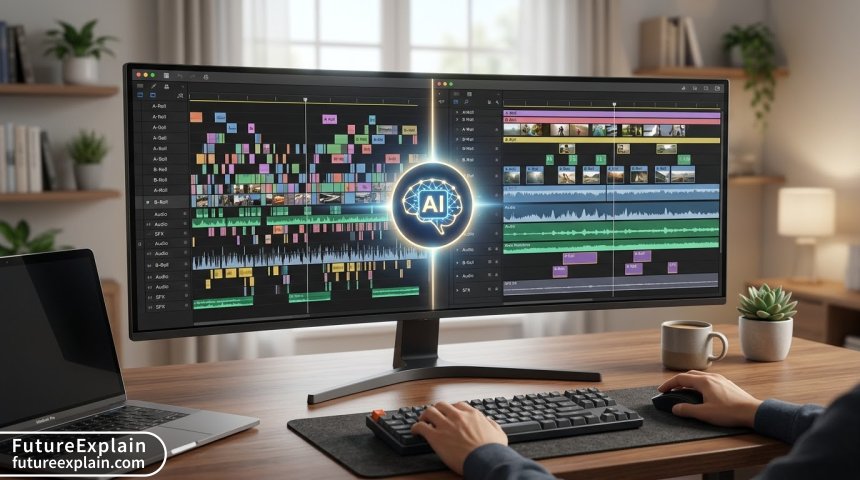
The promise of AI video editing sounds almost too good to be true: transform hours of tedious work into a task that takes minutes. For beginners, small business owners, and content creators, this isn't about science fiction; it's about practical tools available today that can dramatically streamline your workflow. This guide will explain, in simple terms, how AI is revolutionizing video editing by taking over repetitive, time-consuming tasks, allowing you to focus on storytelling and creativity.
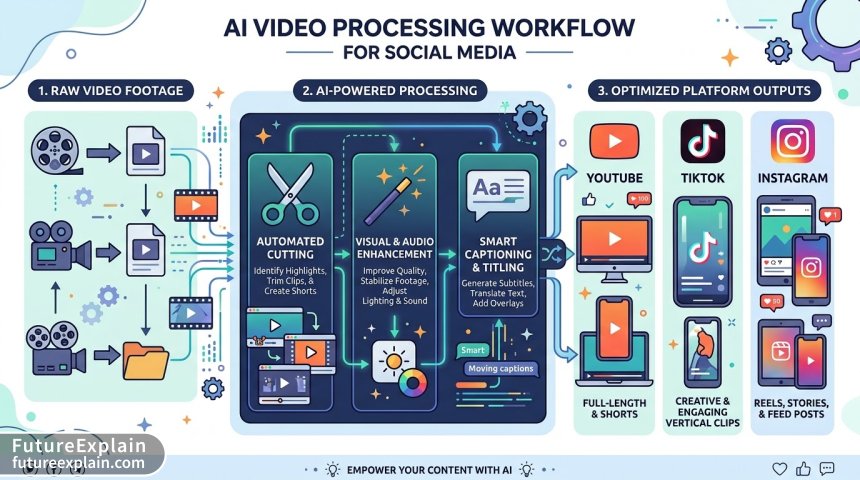
At its core, AI video editing uses machine learning algorithms to understand the content of your footage—the visuals, the audio, the dialogue—and automate specific editing decisions[citation:8]. The most significant impact for most users happens in three key areas: cutting footage intelligently, enhancing quality automatically, and generating accurate captions. We'll explore each of these, providing clear explanations and concrete examples of tools that can help.
What AI Video Editors Actually Do (And What They Don't)
Before diving into specific tools, it's crucial to set realistic expectations. Current AI is an exceptional assistant, not a replacement for human creativity and judgment. A professional video editor notes that while AI tools can boost content output by up to 30%, they cannot understand your audience or perform final quality control[citation:6]. These tools excel at the "grunt work": scanning hours of footage for the best moments, cleaning up audio, removing awkward pauses, and generating a rough cut or subtitles.
Think of a professional editor's job. They must watch all the material, find the compelling moments, assemble a narrative, and justify their creative choices. As one analysis of AI editing tools points out, this inherent responsibility is hard to fully automate[citation:4]. An AI might select clips that make sense individually but fail to create a coherent, emotionally resonant flow. Therefore, the most effective use of AI in 2025 is as a powerful co-pilot that handles labor-intensive preparation, giving you more time for the nuanced, creative polish that makes a video truly engaging.
1. Cutting with AI: From Raw Footage to Rough Cut
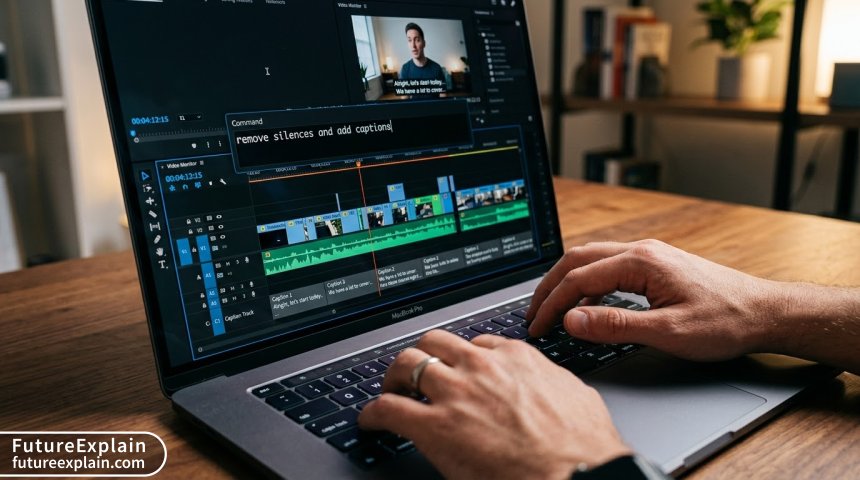
The first and perhaps most daunting stage of editing is simply going through all your raw footage. AI cutting tools analyze your video to identify key moments, remove silences, and even create highlight reels tailored for different social media platforms.
Removing Silences and Filler Words
This is one of the most universally useful AI features. Tools like Descript's Underlord and plugins like AutoCut can automatically detect and remove pauses, "ums," and "ahs" from spoken-word videos like podcasts, interviews, and tutorials[citation:4][citation:10]. The time savings are substantial. One user reported that using AutoCut reduced their editing time for a one-hour recording from six hours to about thirty minutes[citation:10]. This automation creates a tighter, more dynamic pace without requiring you to manually listen and cut every single pause.
Finding Highlights and Creating Clips
For creators looking to repurpose long videos (like webinars, live streams, or podcasts) into short clips for TikTok, YouTube Shorts, or Instagram Reels, AI clipping tools are a game-changer. Platforms like OpusClip and Vizard.ai specialize in this. You upload a long video, and their AI analyzes it for engaging moments—often based on audio sentiment, visual cues, and even trending topics—and then generates multiple short, platform-formatted clips[citation:1][citation:5]. Vizard.ai claims this process can be 10x faster than manual clipping[citation:5].
The "Assistant Editor": AI for Rough Cuts
A more advanced category of tools acts like a preliminary editor. Eddie AI is a desktop app that can log footage, transcribe it, and build a rough edit based on a story framework you choose (like intro, conflict, resolution)[citation:4]. It analyzes hours of interview material and provides a text summary, allowing you to review and iterate on sections. While the resulting cut will be rough and require human refinement, it provides a massive head start, transforming a blank timeline into a workable draft in minutes instead of days.
Visuals Produced by AI
2. Enhancing with AI: Polishing Visuals and Audio
Once your footage is cut together, the next stage is enhancement. AI tools can now perform tasks that once required specialized software and expert knowledge, making professional-grade polish accessible to everyone.
Visual Enhancement: Stabilization, Color, and Effects
Shaky footage? Poor lighting? AI has solutions. Many mainstream editors now have AI-powered stabilization. DaVinci Resolve includes powerful AI features like its Neural Engine for optimization and Magic Mask for easily isolating and tracking objects for color correction or effects[citation:7]. For those without high-end software, online tools like Canva's Magic Video offer AI-powered background removal with a single click, allowing you to replace a messy backdrop without a green screen[citation:3].
Audio Enhancement and AI Voiceovers
Clean audio is critical. AI can remove background noise, hums, and echoes to make dialogue crisp. Descript's "Studio Sound" and similar features in other tools can dramatically improve recordings made in less-than-ideal environments[citation:7]. Furthermore, if you need a voiceover but lack recording equipment or the right voice, AI voice generators have become remarkably realistic. Canva and InVideo offer a range of AI voices in multiple accents[citation:3][citation:9]. Tools like Synthesia take this further, allowing you to create videos with AI-generated avatars delivering your script, which is popular for corporate training and multilingual content[citation:7].
Generative AI: Creating Video from Text
This is the bleeding edge. Platforms like WaveSpeedAI and Runway allow you to generate original video clips from text descriptions[citation:7]. Imagine typing "a tranquil forest scene at dawn with a deer" and getting a short video clip. While the technology is still evolving and best for creating specific B-roll or conceptual shots rather than entire narratives, it points to a future where editors can generate missing visual elements on demand. WaveSpeedAI distinguishes itself by offering API access to hundreds of such models, catering to developers who want to build video generation into their own applications[citation:7].
3. Captioning with AI: Boosting Accessibility and Engagement
Captions are no longer optional. They are essential for accessibility, for viewers watching on mute, and for algorithm-friendly content. Manually transcribing and timing captions is incredibly tedious. AI captioning automates this entire process.
Automatic Transcription and Styling
Most AI video editors, from consumer-friendly CapCut to professional Adobe Premiere Pro, now offer highly accurate, automatic speech-to-text transcription[citation:2][citation:7]. The real power lies in what you can do next. Tools like AutoCut's AutoCaptions feature can instantly translate those captions into other languages and apply dynamic, animated styles to make them visually engaging[citation:10]. This transforms a basic accessibility feature into a core part of your video's visual design and global reach.
Text-Based Editing: A Revolutionary Workflow
This is where AI captioning becomes truly powerful. In tools like Descript and Vizard.ai, your transcript is not just a subtitle file; it's your editing timeline[citation:5][citation:7]. You edit your video by editing the text. Need to remove a paragraph? Delete the text, and the corresponding video and audio are spliced out seamlessly. This makes editing as intuitive as editing a document, which is a far lower barrier to entry than learning a complex visual timeline. It's particularly transformative for editing interviews, lectures, and podcasts.
Visuals Produced by AI
Choosing the Right Tool: A Guide for Every User
With so many options, the key is to match the tool to your specific needs, skill level, and budget. Here is a breakdown to help you decide.
For Absolute Beginners & Casual Users
If you're new to video editing and need to create simple social media clips, presentations, or family videos, start with user-friendly, often free, online tools.
- Canva: Excellent for quick, design-forward videos. Its AI features like Magic Video for automatic editing and AI Voice Generator are very accessible. The free tier is generous[citation:3].
- CapCut: Built for the TikTok/Reels generation. It's free, packed with trendy templates, beatsync AI, and auto-captions, and works great on mobile[citation:7].
- InVideo AI: Great for turning a text idea into a video. You describe what you want, and it generates a script, finds stock footage, adds voiceover, and provides a simple editor for tweaks[citation:9].
For Content Creators, Marketers & Small Businesses
If you produce video regularly for a channel, brand, or clients, you need efficiency and consistency.
- Descript: The king of text-based editing. If you create podcasts, interviews, or YouTube tutorials, its combination of transcription, filler word removal, and easy editing is unmatched[citation:4][citation:7].
- OpusClip / Vizard.ai: If your primary goal is repurposing long-form content (webinars, podcasts, live streams) into viral short clips, these dedicated tools are the most efficient[citation:1][citation:5].
- Pictory / InVideo: Strong for marketing teams. They specialize in turning blog posts or scripts into branded video summaries using AI voiceovers and stock footage[citation:7].
For Professional Editors & Power Users
If you already use professional software like Premiere Pro, DaVinci Resolve, or Final Cut Pro, AI is about supercharging your existing workflow, not replacing it.
- Adobe Premiere Pro: Integrates AI via Adobe Sensei for auto-reframing, color matching, and superb speech-to-text. It's the industry standard for a reason[citation:2][citation:7].
- DaVinci Resolve: Offers incredible AI-powered color grading (Magic Mask) and audio tools for free. The one-time Studio license is a great value for professionals[citation:2][citation:7].
- Plugins (AutoCut): Tools like AutoCut plug directly into Premiere Pro or DaVinci Resolve to automate silence removal, captioning, and multicam podcast editing right where you already work[citation:10].
Getting Started: Your First AI-Assisted Edit
Feeling overwhelmed? Follow this simple, practical workflow to get started.
- Choose Your Core Tool: Based on the guide above, pick one primary tool that fits your main use case. Don't try to learn five at once.
- Start with One Feature: For your first project, use just one AI feature. For a talking-head video, try automatic silence removal. For a webinar, try generating three social clips.
- Review and Refine: AI provides a draft, not a final product. Always watch the AI's work. Adjust cuts, tweak caption timing, and ensure the story flows.
- Iterate: As you get comfortable, experiment with layering AI features. First, let AI create a rough cut and captions. Then, use another AI tool to enhance the audio or generate a custom B-roll shot.
Remember, the goal is not a fully automated process but a highly accelerated one. As one editor who uses a suite of AI tools summarized, these applications handle the grunt work so you can focus on what AI can't: storytelling, creative vision, and the human touch[citation:6].
The Future and Responsible Use
The landscape is moving rapidly. The next wave, as seen with platforms like WaveSpeedAI, is about API-driven, programmatic video creation that can be integrated into other apps and scaled for business use[citation:7]. However, with great power comes responsibility. Be mindful of copyright when using AI-generated visuals or voices. Be transparent if you're using an AI avatar or voice clone. Use AI to augment your unique creativity, not to replicate others' work without adding your own value.
AI video editing is here, and it's a powerful ally for anyone who works with video. By understanding its core capabilities in cutting, enhancing, and captioning, you can confidently choose tools that save you time, reduce frustration, and free you up to do the creative work that matters most.
Further Reading
- Explore how AI is transforming other creative fields in our guide: Video Generation Tools: Practical Guide for Marketers.
- Learn about the broader category of design tools in: AI Image & Design Tools.
- For a foundational look at how these systems learn, read: How Does Machine Learning Work? Explained Simply.